
Well, hey, how ’bout that? Here we are, on a random quiet-seeming week in June, and a new Android version is officially making its way into the wild and onto our favorite Googley gizmos.
Yes, indeed: Google announced the launch of Android 17 this week, and the rollout is getting underway as we speak. As usual, the software will show up for current, still-supported Pixel devices right away, over the next few to several days. (As for everyone else — well, you know the drill by now, right? It’s up to each individual Android device-maker to process and send out its software updates, and outside of Pixels, that support is exasperatingly unreliable. But odds are, if you aren’t palming a Pixel, you’ll be waiting for a while — maybe even a long while, if you have a phone by a certain manufacturer whose name rhymes with Boatorola.)
As always, some of Android 17’s most important elements are the under-the-hood privacy, security, and performance enhancements that you won’t explicitly see but that will make a critical difference in your device’s ability to operate efficiently and advisably. But this latest Android release also packs an impressive punch of interesting surface-level touches that’ll bring an instant boost to your day-to-day productivity and all-around Android-enjoying experience.
As is often the case, many of the most useful elements are things you might not ever even notice or think to tap into if you don’t know where to look.
Here are the four Android 17 features I’ve found most noteworthy so far and how you can start putting ’em to use this second.
[Psst: Don’t let the learning stop here. Check out my free Pixel Academy e-course to discover all sorts of advanced intelligence lurking within whatever Pixel you’re using!]
Android 17 Pixel feature #1: Bubbles multitasking magic
Our first Android 17 addition on its way to Pixel owners this week is something that’s been in the works for many a moon now — and that’s a handy new multitasking mode known as Bubbles.
Bubbles first came into the Android picture way back in 2019, but at that point, it was limited mostly to messaging and never came close to reaching its full promised potential. At long last, now, Bubbles are back, baby, and becoming everything we’d always wanted them to be.
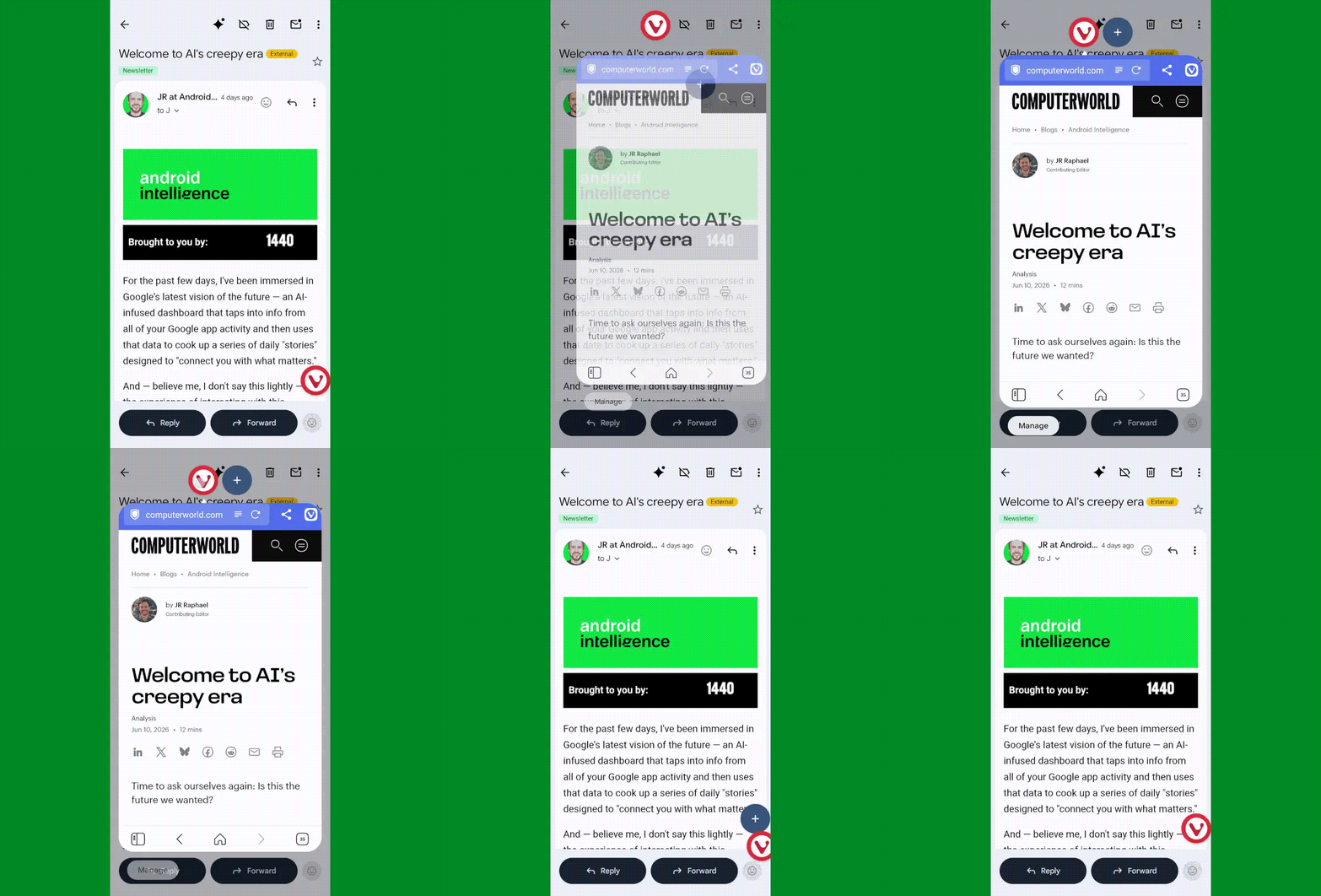
The simplest way to think about Bubbles is as a way to turn any app you’re using into a floating, collapsible window — so you can pull it up on demand when you want it, then minimize it back down into a small icon (a “bubble” — get it?!) to get it out of your hair but keep it nearby for easy ongoing access.
It’s an interesting way to multitask without having to commit to a full-fledged split-screen setup. It can be quite useful for keeping things like lists, documents, emails, chats, or anything else you’re coming back to regularly at your fingertips — so you can pop into it as needed, without any real effort, but also without having it in your face all the time.
JR Raphael, Foundry
In Android 17, Bubbles is easy to launch with any app in front of you. The only catch is that as of now, at least, it can be triggered only from the standard stock Pixel Launcher — not a custom Android launcher like Smart Launcher or Niagara.
Provided you’re using the standard Android home screen setup, though, all you’ve gotta do is:
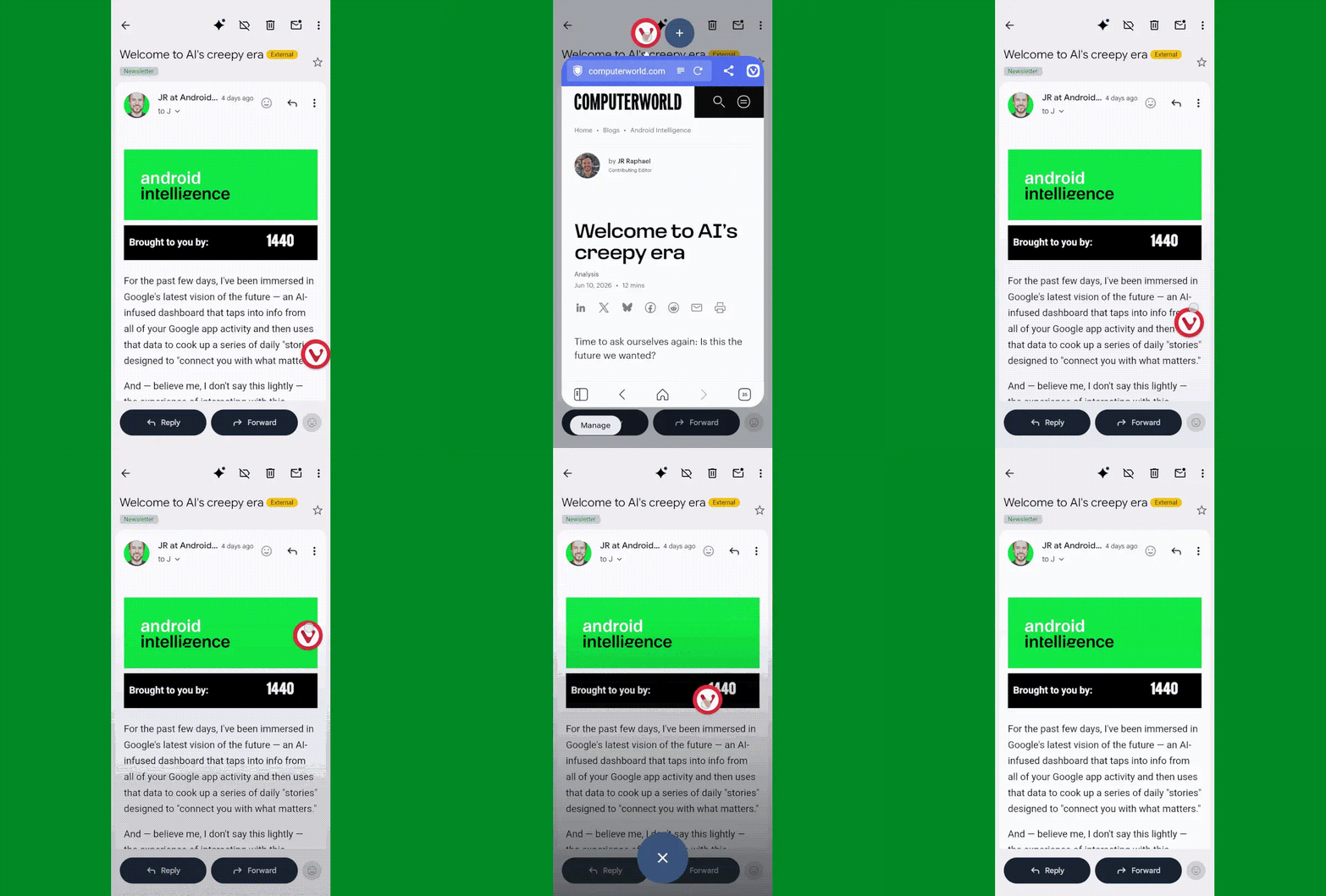
- Press and hold any app’s icon on your home screen or in your app drawer.
- In the menu that pops up, tap the option that says “Bubble.”
- Then tap the bubbled app icon to expand or minimize the app, or press and hold it to move it around to any position on your screen or dismiss it.
JR Raphael, Foundry
You can also add additional bubbled apps into that same view via the plus icon next to the first app’s icon when a bubble is open. Pretty nifty, wouldn’t ya say?
Android 17 Pixel feature #2: Smarter location access
Allowing apps access to your location inevitably requires a certain amount of compromise when it comes to the ever-prickly subject of privacy — and it demands a certain level of trust that the apps in question won’t abuse the privilege or use it for reasons beyond their intended purposes.
Android 17 makes it meaningfully easier to accept that bargain and rest easy knowing your info isn’t being misused, thanks to a pair of related new privacy protection measures:
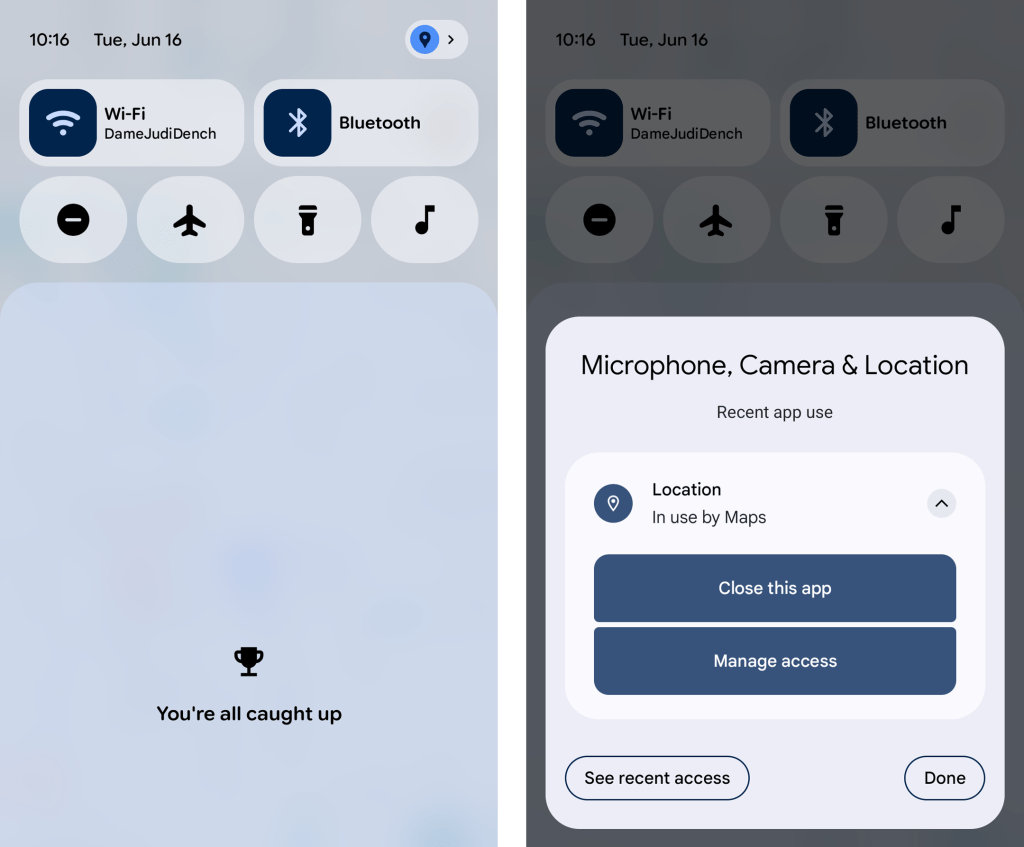
- First, whenever any app is accessing your location, you’ll now see a blue dot appear in the upper-right corner of your screen — and if you swipe down once from the top of your screen to open your notification panel, you can actually tap on the location icon that appears in its place to get detailed info about exactly which app or apps are involved. With another tap from there, you can opt to force-close the app in question, view all of its recent location access attempts, and manage its location access ability, too, in case anything ever seems amiss.
JR Raphael, Foundry
- And second, when an app asks to access your precise location, Android 17 adds in the option to allow such access only temporarily — for that one brief moment and purpose — without giving the app the permanent permission for ongoing use.
Hey, we’ll take it. Just remember to keep tabs on the permissions Google itself is claiming these days, too, as those don’t always come with a prominent pop-up.
Android 17 Pixel feature #3: More dynamic dark mode
Dark mode may be one of the more divisive interface adjustments of our modern mobile moment, but if you’re a fan of the dimmer, less glary view across your Android experience, you’re bound to appreciate the added option Android 17 affords you in that area.
It’s a simple one-tap checkbox that forces apps to adjust and comply with your dark mode preference, when it’s active — even if they don’t natively support such a setting. That means those pesky apps that’d typically maintain the same standard light interface even when you activate dark mode will now turn dark along with the rest of your setup whenever Android’s dark mode is on.
All it takes it quite literally one tap on the freshly added Android 17 option:
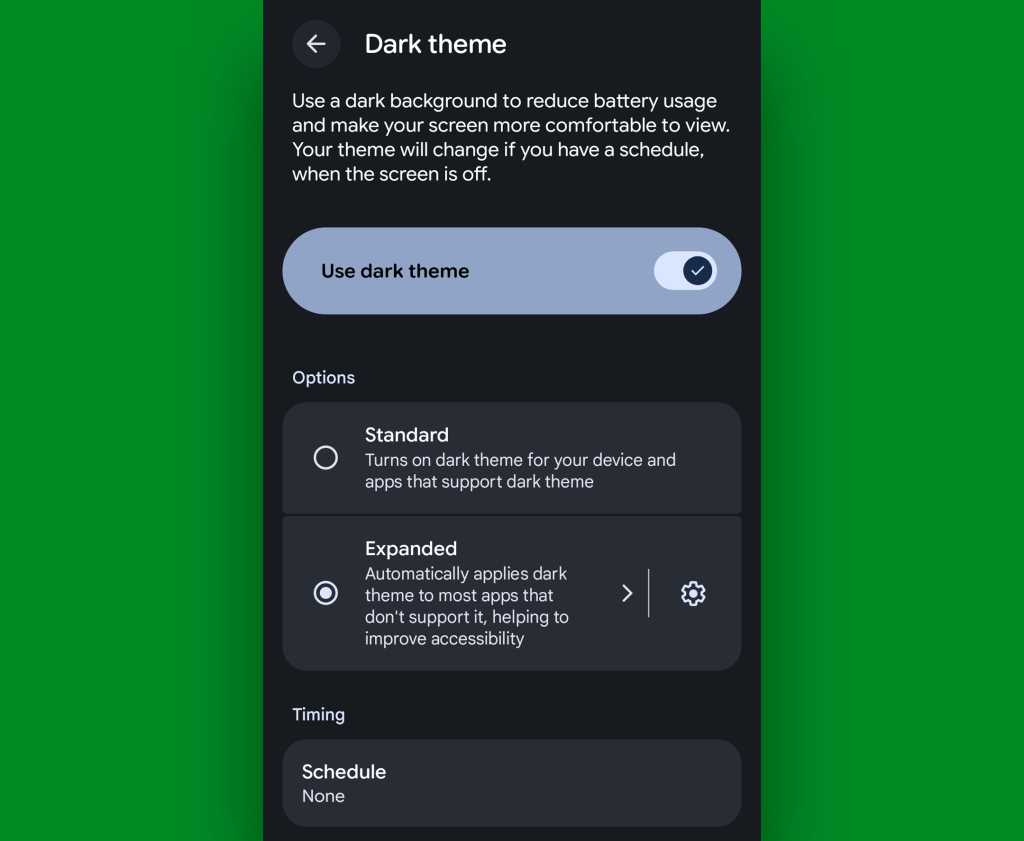
- Head into the Display section of your Pixel system settings.
- Tap “Dark theme” — the actual words, not the toggle alongside ’em.
- And change the setting from “Standard” to “Expanded.”
JR Raphael, Foundry
Now, one note: By forcing apps to adapt to dark mode even if they aren’t designed for it, it’s possible some programs may end up lookin’ a little funky. If that ever happens and you aren’t thrilled with an app’s adaptation, go back to that same settings screen we were just starin’ at and tap the gear-shaped icon alongside the “Expanded dark theme” option. That’ll let you create exceptions and select specific apps that don’t get dark mode automatically applied.
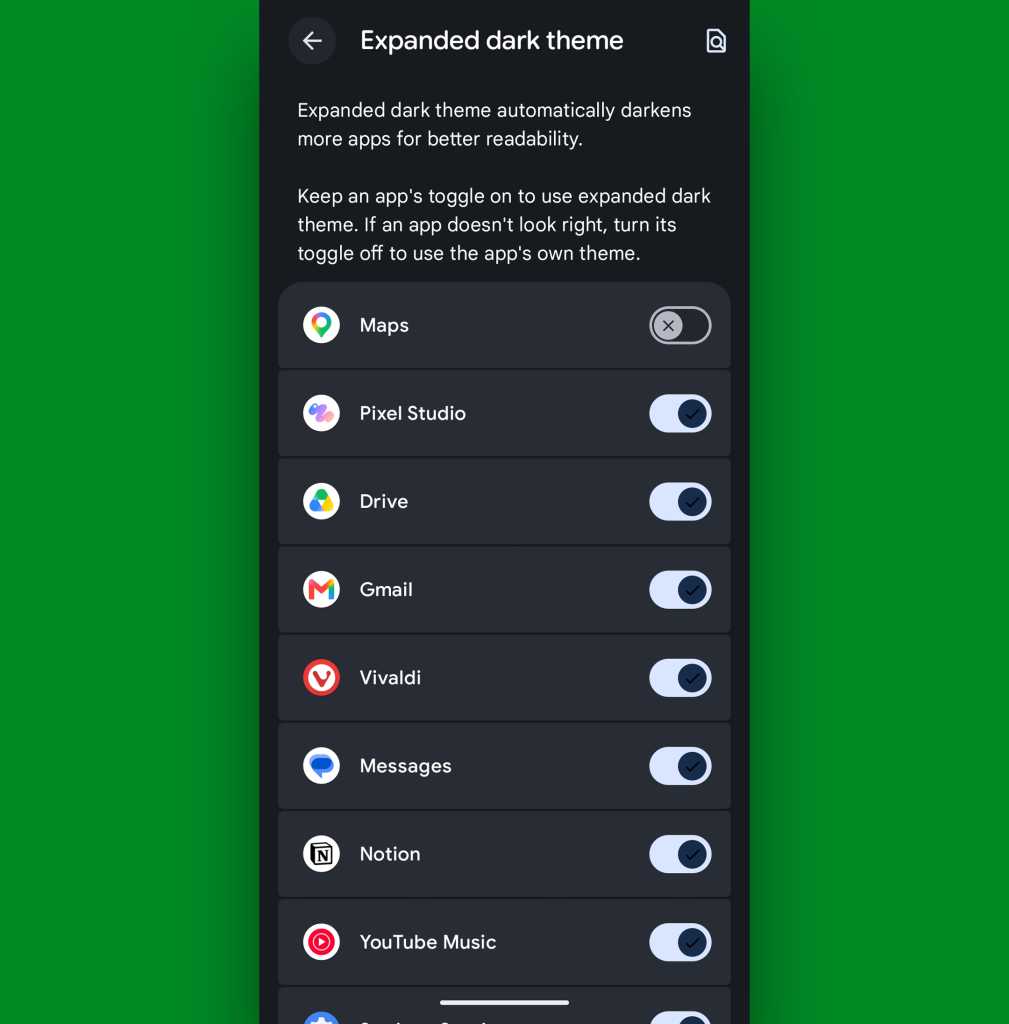
JR Raphael, Foundry
But everything else will now be in the dark when you want it — just like your dark, brooding heart desires.
Android 17 Pixel feature #4: A more comfy all-around view
Whether you’re a prince/princess/dutchess/middle-manager of darkness or not, Android 17’s new Comfort View may be just the thing for you.
Comfort View is an off-by-default addition to your Pixel that applies a softer, more pastel-oriented filter to the display with automatic adjustments based on your current viewing environment — in other words, how bright it is around you at any given moment. Ooh, ahh, etc.
To try it out, march your way back into those Display settings, and this time, tap the line labeled “Comfort Filters.” Flip the switch next to “Comfort View,” make sure the “Dynamic” checkbox is active, and see how you feel about your newly optimized screen-color view as you move throughout your day.
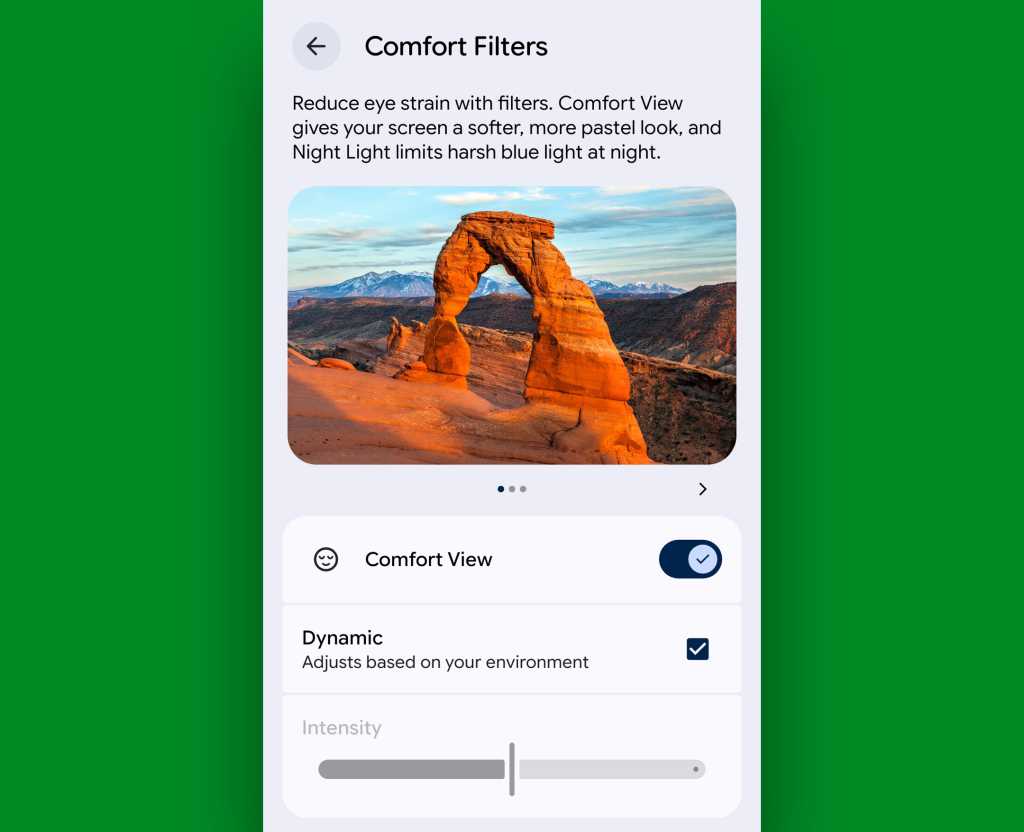
JR Raphael, Foundry
If you find the filtering to be too extreme or not enough to make a difference, you can also try disabling the “Dynamic” option there and then manually adjusting the “Intensity” slider to suit your specific peeper preferences. But I suspect if you give it enough time, you’ll find the automatic adjustments to be one of those things that just works for you and makes your device a little easier on the eyes, relative to each and every viewing environment — without being something you actively think about or pay much mind.
That, if you ask me, is the sign of an effective feature. And it’s a welcome addition to Android and the ever-evolving Pixel experience.
Don’t let yourself miss an ounce of Pixel magic. Come check out my free Pixel Academy e-course to find tons of hidden features and time-saving tricks for your Googley gizmo.