AI-generated, human-reviewed.
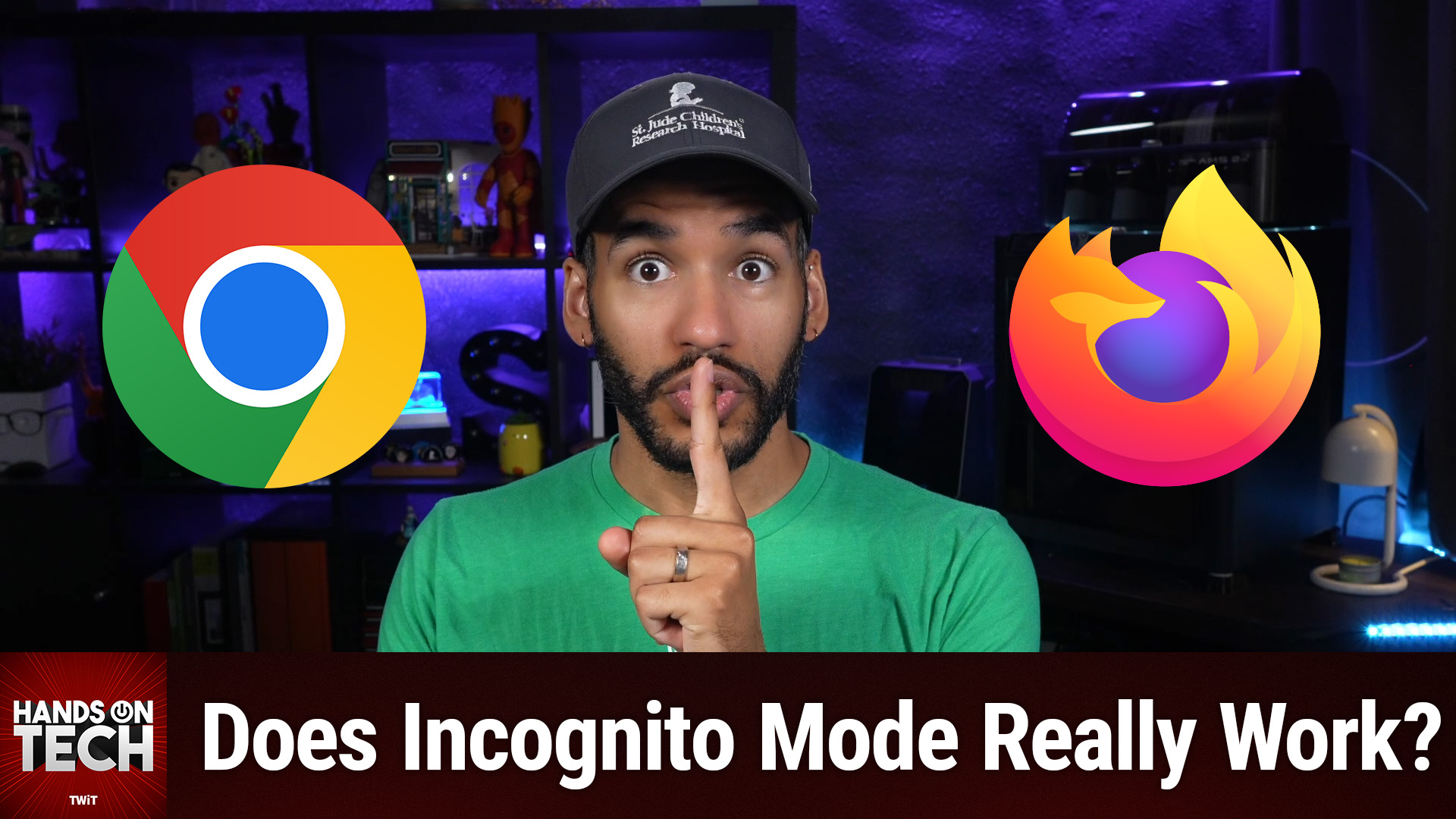
Incognito mode, or private browsing, is a helpful browser feature—but it's often misunderstood. On Hands-On Tech, Mikah Sargent clarified exactly what incognito mode does, who it hides your activity from, and which browsing habits genuinely keep your information private.
Quick Summary
Incognito mode only hides your browsing activity from others who use your device. It does not make your actions invisible to websites, your internet service provider (ISP), employers, or anyone monitoring your network.
If you're browsing in private mode to avoid leaving traces on your computer, it works well. But if your goal is to be anonymous online or keep activities hidden from external parties, you'll need additional tools and strategies.
What Private Browsing Does (And Doesn't) Hide
Private browsing clears your local browser data—including browsing history, cookies, and form entries—when you close your session. This means:
- The next person to use your device won't see what you've viewed
- Your browser won't auto-fill info from the incognito session next time
However, incognito mode does not hide:
- Your IP address (which websites and network admins can see)
- Activity from your ISP, employer, or school network
- What you do on sites when logged in (e.g., if you log into Google or Amazon, your actions there are still tied to your account)
Mikah Sargent emphasized that private browsing is mainly for local privacy, not total online anonymity.
How to Apply This: Everyday Scenarios
When incognito mode is useful:
- Browsing on a shared or public computer (like at a library)
- Shopping for gifts on a family computer so others don't see your activity
- Logging into a different account without interfering with your primary login info or cookies
When incognito isn't enough:
- Hiding browsing from employers or schools (they often see network traffic)
- Avoiding tracking from websites, ads, or data brokers
- Preventing your ISP from knowing which sites you visit
In these cases, Mikah Sargent recommends considering VPNs (Virtual Private Networks)—which can obscure your traffic from your ISP—or browsers/extensions offering tracker blocking for extra privacy.
Who Can Still See What You Do in Incognito Mode?
- Websites: Can still see your IP address and may use browser fingerprinting to identify you.
- Employers/Schools: If you're using their computers or networks, they may log your online activity regardless of private mode.
- ISP: Can detect which domains you access, though deep details are obscured if you use encrypted sites (HTTPS).
Cryptic as the browser's private badge may look, it's far from a guarantee that your web activity is hidden from everyone.
Best Practices for Online Privacy
- Use a VPN from a trusted provider for wider privacy (especially on shared Wi-Fi)
- Look for browsers or add-ons with tracker and ad-blocking features
- Regularly clear browser data, even outside of incognito
- When truly anonymous browsing is required, consider privacy-first browsers like Firefox with enhanced tracking protection, or the Tor Browser
Key Takeaways
- Incognito mode's privacy is local: It prevents history, cookies, and search info from being stored on your device, but doesn't mask your activity on the web.
- Third parties can still see your traffic: ISPs, network admins, and websites get most of the same details as always unless you use additional privacy tools.
- Private browsing is great for temporary local privacy, not for full anonymity or completely hiding online behavior.
The Bottom Line
Incognito mode is a practical tool for keeping your device's browsing history private from others using the same machine. It's not designed for, nor capable of, making you invisible online. To guard against online tracking or surveillance, layer tools like VPNs, encrypted connections (HTTPS), and tracking blockers.
Want more clear, actionable tech advice? Subscribe to Hands-On Tech for weekly answers to your practical questions: https://twit.tv/shows/hands-on-tech/episodes/281