
Google Drive is the cloud platform for storing and organizing your Google Workspace files: documents, presentations, spreadsheets, and even media (images, audio, and video). If your Workspace account includes Gemini, Google’s AI assistant, you can prompt it to work with your files, such as asking it to analyze or sum up information from your Drive files.
Obviously, this is quite convenient: Instead of having to load one or more files and search or read through them to find specific information — for example, about your business’ budget — you can just ask Gemini to analyze your files and provide a budget summary. Gemini can even access your Gmail and content from other Workspace tools (such as Google Calendar, Chat, Keep, and Tasks) for any mentions of your business’ budget.
However, an issue arises if you have a lot of files in your Drive library. You can quickly fill up your storage over the course of your business activity, creating new documents, spreadsheets, and presentations and accumulating even more files from co-workers. This can slow Gemini as it scans your entire library to find and compile the information you request.
A more focused approach to AI interaction with your files
To remedy this, the Projects feature in Drive helps Gemini process your files more efficiently. The basic idea is that you create a Project for a specific subject or work project. You attach files that you select in your Drive, as well as specific content from your other Workspace tools, such as chats, calendar events, emails, notes, or tasks.
When you chat with Gemini within this Project, it will analyze only the materials attached to the Project. Thus, Gemini should perform faster and provide you more contextual results.
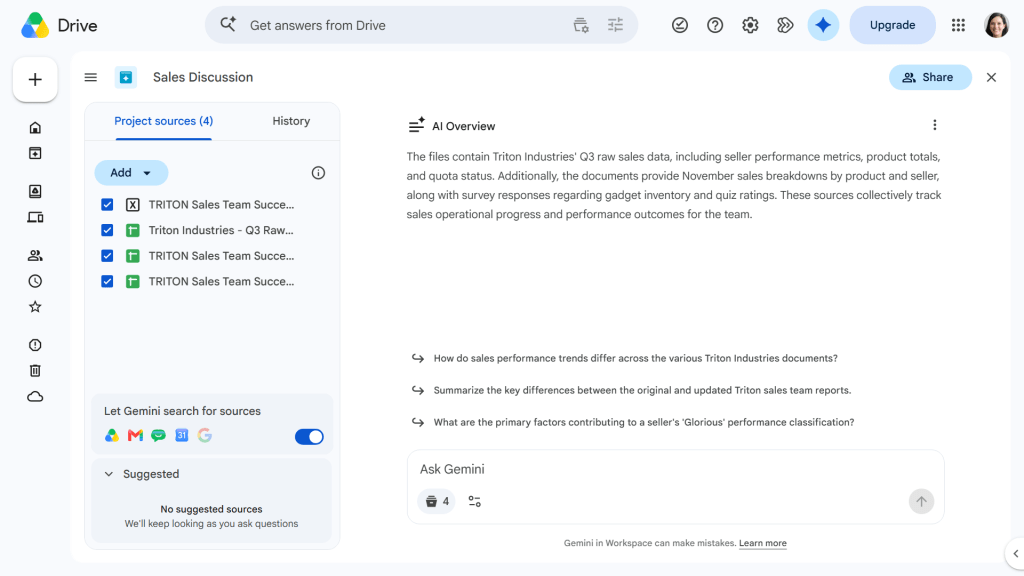
Group specific documents and other sources as a project in Google Drive, then ask Gemini for insights.
Howard Wen / Foundry
It’s similar in concept to Google’s Gemini Notebook (formerly NotebookLM) tool in that you direct the AI to work with a specific set of sources only, except it’s built right into Google Drive and Workspace. There’s no need to upload any files; you simply point to the relevant sources in your existing environment.
Another benefit to using Drive Projects: You can share a Project with your co-workers. They can access only the files that you’ve attached to a Project, and if they have Gemini access, they’ll be able to have their own chats with the AI about the Project.
How to use Drive Projects
In this guide, we’ll go over how to set up, use, and share a Project in your Google Drive.
Prerequisite: A subscription that includes Gemini access
Because Projects relies on Gemini, this feature is not available for free, personal Google accounts. You can unlock the Projects feature by subscribing to a paid Google AI plan.
For business and enterprise users: Google Workspace accounts that include Gemini (such as Business Standard, Business Plus, Enterprise Standard, and Enterprise Plus) have access to the Drive Projects feature. If you’re a member of these organizations, you can create, view, manage, and share projects across your company domain.
Accessing Drive Projects: Web vs. mobile
Currently, you can create and open Drive Projects only in the Google Drive web app. In the Drive mobile app, you can view your existing project names, rename them, share them with co-workers, and adjust their share permission settings.
Create a Drive Project from scratch
You can start a new Project in a few different ways:
- Open the Google Drive home page in your web browser. At the top-left corner of the screen, click the New button. From the dropdown that opens, click New project.
- On the Drive home page, click Projects in the left navigation. On the Projects page that appears, click Create a project.
- The fastest way to start a new Project is to type project.new in your browser’s address bar.
A new Project creation screen will open. Enter a title for your new Project. Use clear, concise wording, such as “Q4 Budget Analysis.”
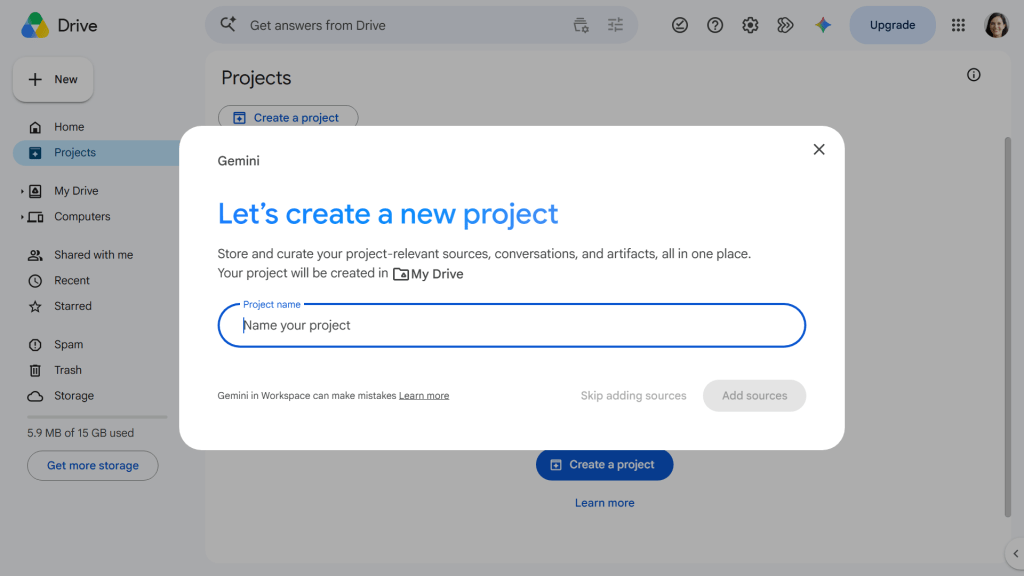
Give your project a descriptive name.
Howard Wen / Foundry
Next, you’ll add your relevant Workspace sources, such as Docs/Sheets/Slides files, Microsoft 365 files, or PDFs that are stored in Drive.
Click the Add sources button, and Gemini will present a list of sources that it recommends (files, folders, emails, etc.), basing these on your recent activity in your Google account. You can select items from these recommendations and/or click Add more sources to open a screen where you can search for additional files in your Drive. You can attach specific documents or an entire folder.
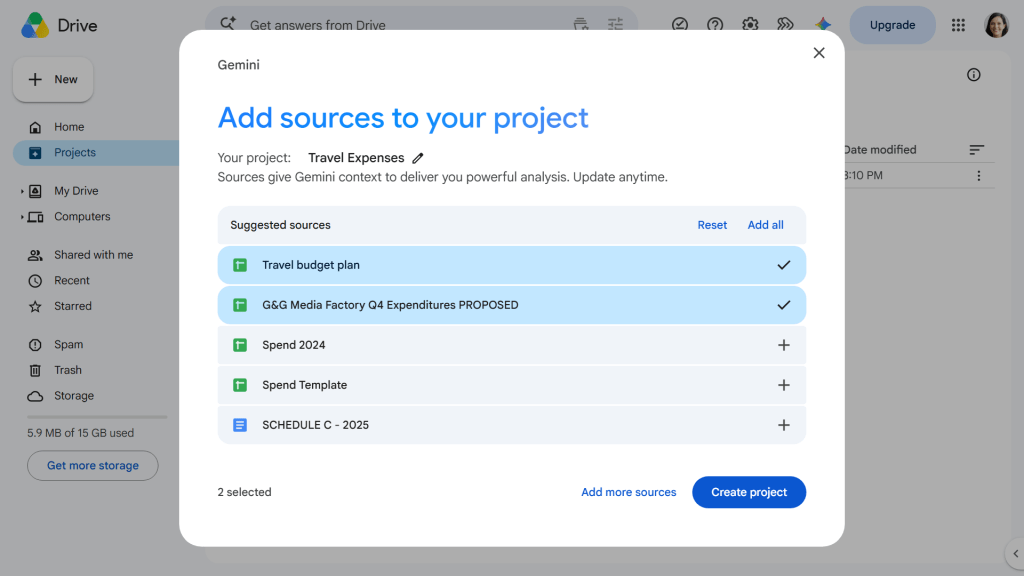
Select the sources you want to include in the project.
Howard Wen / Foundry
After you have selected the source materials you want, click Create project.
You’ll be taken to a new page with your project title at the top, a panel at the left listing the Project sources, and a large chat area to the right. Toward the bottom of the left panel, turn on the “Let Gemini search for sources” switch. This permits Gemini to search your Gmail, Google Chat, Google Calendar, and other Google Workspace activity for more potential sources related to this project when you prompt it to.
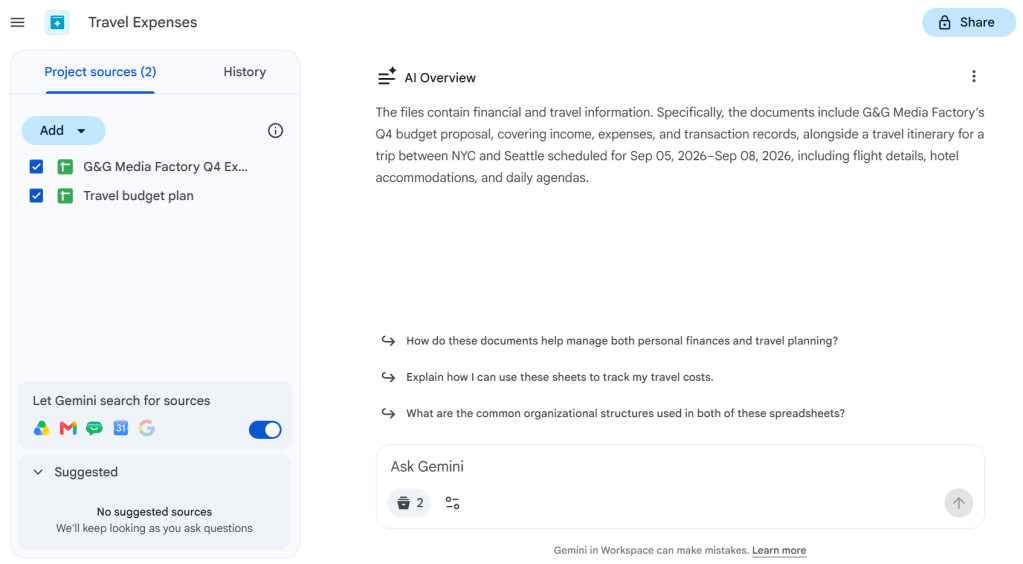
If you turn the ‘Let Gemini search for sources’ switch on, you can prompt Gemini to find more related sources from Drive, Gmail, Chat, and Calendar.
Howard Wen / Foundry
Create a new Project in a Gemini chat
Another way to create a new Project is from within a Gemini chat session. Say you’re already in a chat with Gemini, prompting it with questions or requests about files or other Workspace content, and you want these materials to be used for a new Project. At the top right corner of the chat screen, click Save as a project.
Gemini will analyze the files in this conversation and suggest a title for the Project. You can use this title or change it before saving the chat as a new Project.
Chat with Gemini in a Project
Once your Project is created, you can interact with Gemini in it.
For example, ask Gemini to extract key details from all the documents that you’ve attached to the Project, compare them to each other, or summarize key takeaways from all the documents. Or instruct Gemini to extract certain data from your documents or spreadsheets in the Project. You can instruct it to format the result as a table and export it to Google Sheets.
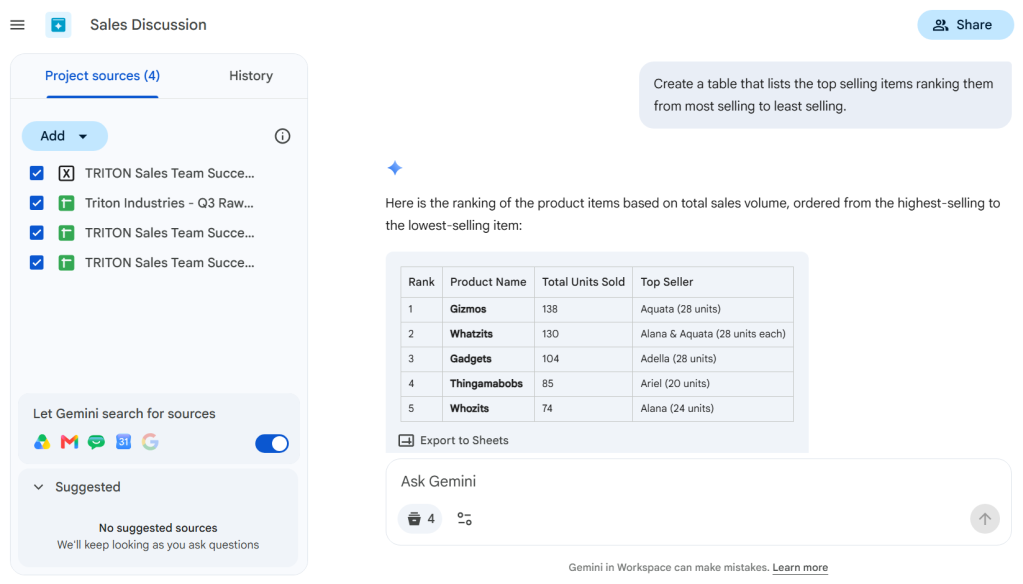
Ask Gemini to extract, analyze, and/or visualize key data from your sources.
Howard Wen / Foundry
Because Gemini has to focus its analysis only on the sources that you’ve added and not everything in your Drive and Google account, these results should be generated much more quickly and with more specific context.
Important: All generative AI tools make mistakes, so be sure to verify Gemini’s results.
Access your Projects and pick up where you left off
You can return to a project at any time and resume your chats with Gemini about it. On your Drive home page, click Projects and select the Project you want to reopen. You can add more sources or remove sources from it.
To review your chat history with Gemini for the Project, click the History tab in the left panel. You can click a past thread and resume the chat with Gemini where you left off without losing its context.
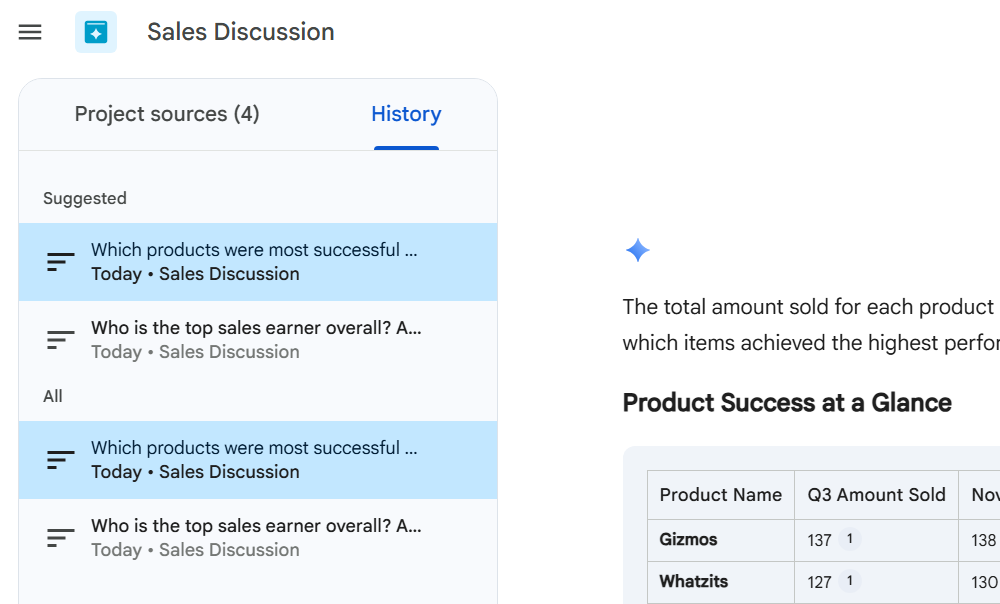
Click a thread on the History tab to resume the chat with Gemini.
Howard Wen / Foundry
Collaborate on your Projects with co-workers
Sharing a Project with co-workers is the same process as sharing a file in your Google Drive: Open the Project and click Share to open its sharing settings. From the settings menu, invite co-workers by entering their email addresses. Or you can copy a link to your Project and share it with them through other means, such as a chat with the person.
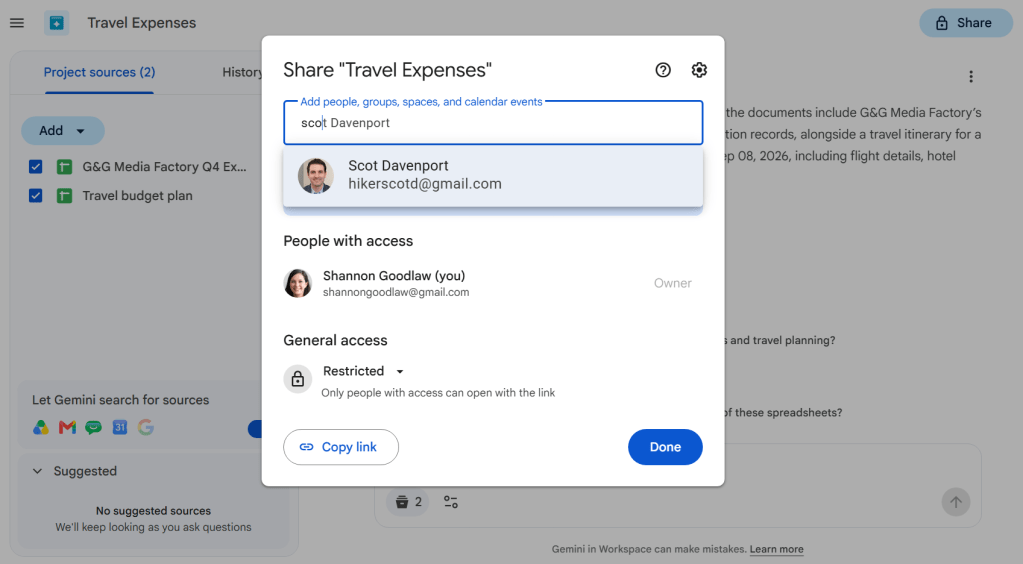
Sharing a Drive project.
Howard Wen / Foundry
How file permissions work in Drive Projects
Collaborating on a Drive Project raises privacy concerns, since you can attach your files, emails, and personal information to it for Gemini to analyze. Here’s what you and your collaborators should know about projects and permissions:
- When you grant someone access to your Project, they can see and query the source files – but only if they already have permission to view those files in Google Drive. If a collaborator doesn’t have existing access to a file in the Project, simply adding them to the Project will NOT automatically grant them permission to that source file. They must be granted file-level access separately. (You’ll see a prompt to give them access.)
- The Gemini chat session for each person in your Project remains strictly private to them. So a co-worker who’s collaborating with you on your Project cannot see your chats with Gemini, whether it’s your prompts to Gemini or the results it generates at your end.
- If you attach a Gmail thread to a Project, other collaborators in the project will not be able to view the thread, nor can they prompt Gemini to reveal what’s in your emails.
When collaborating on a Project, you can assign each co-worker a specific access type:
- A co-worker assigned as an Editor has full control over the source list of the Project. They can add new files, folders, or emails to your Project, or remove these sources.
- A co-worker assigned as a Viewer can prompt Gemini about the sources in your Project, but cannot change its list of sources.
Related reading:
- Google Workspace: 7 great ways to use the Gemini AI sidebar
- How to use Gemini AI to write (and rewrite) in Google Docs and Gmail
- How to build your own AI agents with Google Workspace Studio
- A beginner’s guide to Google Gemini Gems
- How to collaborate in Google Drive (and Docs, Sheets, and Slides)
- More Google Workspace tips and tutorials