
Google’s new Googlebooks are packed with potential — and while the systems in their current state may be awkwardly rough around the edges, there are some truly interesting ideas within ’em.
I looked at some of those highlights in my recent “Googlebook work test” hands-on analysis, but in addition to all the surface-level sorcery, Googlebooks hide a handful of nifty and at times quite helpful features you wouldn’t notice until you’d really spent some time using ’em and poking around in their various nooks and crannies.
As a follow-up to my broader Googlebook analysis, I thought it’d be fun to show you some of the more off-the-beaten-path elements of the Googlebook experience — interesting little touches that you almost have to go out of your way to discover (or maybe just stumble onto inadvertently!).
Here are seven such treasures I’ve encountered in my time with the Lenovo Googlebook — provided to me as a short-term loaner review unit — so far.
[Get fresh Googley insight in your inbox with my free Android Intelligence newsletter — one new and useful thing to try every Friday.]
Googlebook highlight #1: Instant context
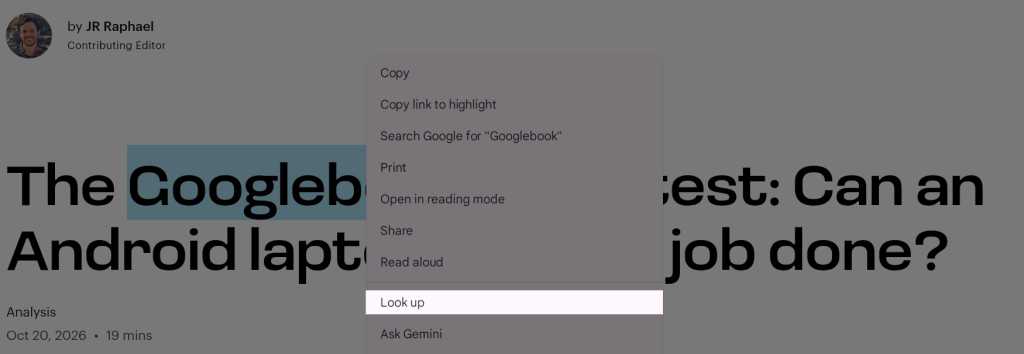
One of my favorite Googlebook features has been one that’s almost never mentioned and all too easy to overlook, and that’s an innocuous-looking little option within the right-click (or long-press) menu when you’re viewing any kind of content. It’s called “Look up.”
(Click any image in this story to enlarge it.)
JR Raphael, Foundry
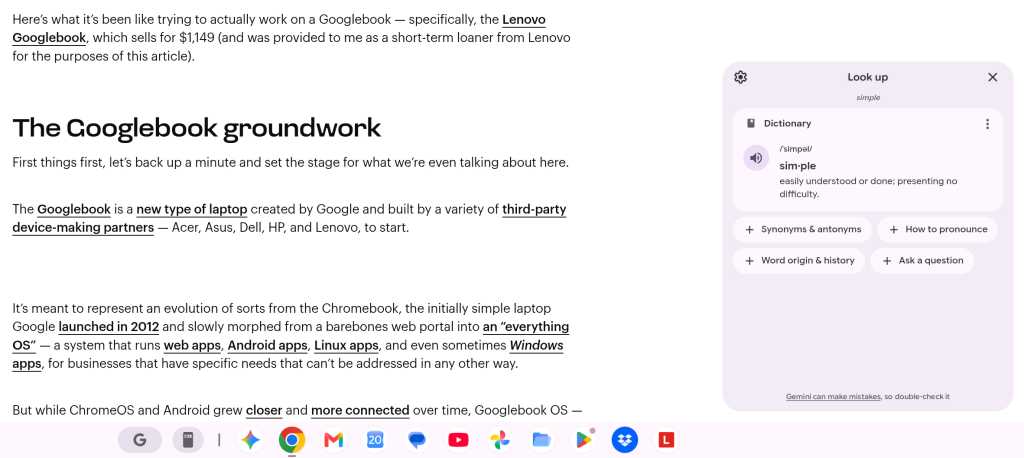
The way it works is simple: You highlight any word or phrase, anywhere, then right-click and select “Look up” — and you get an instant pop-up definition, if the highlighted text is a basic word, or a broader sliver of Gemini-generated context, if it’s something more complex.
JR Raphael, Foundry
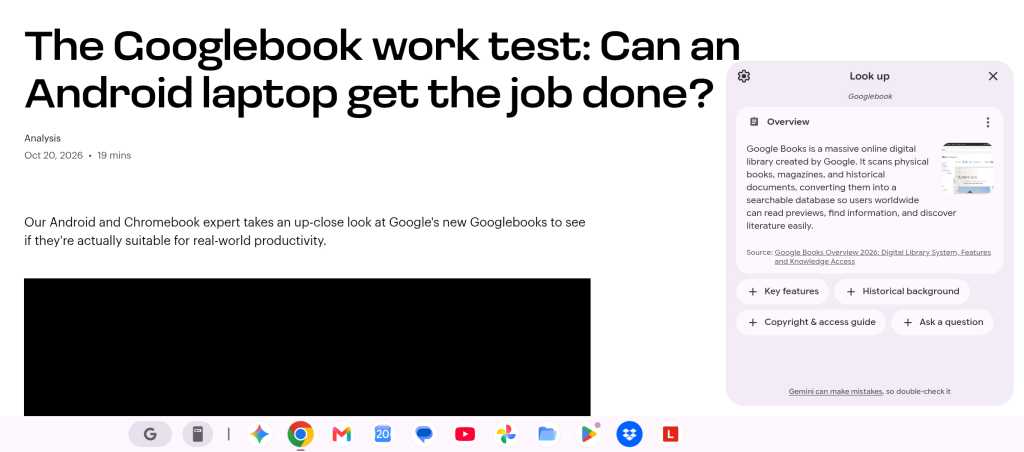
The definitions are honestly where the system seems most useful to me so far. With the Gemini-aided answers, you inevitably open the door to misinterpretation and misinformation potential — seen most comically in this example, where I looked up the phrase “Googlebooks.”
JR Raphael, Foundry
But hey, it’s certainly an interesting idea — and that’s what this list is all about.
Googlebook highlight #2: Circle searching
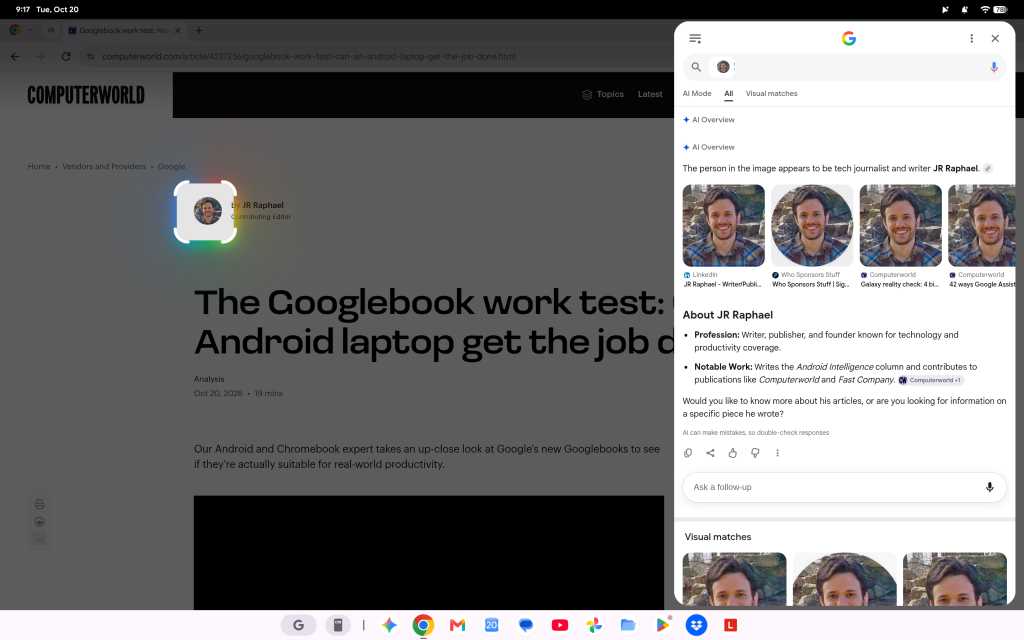
In addition to the “Look up” option, the Circle to Search system familiar to those of us in the Android arena is also quietly present on Googlebooks.
That creates a slightly awkward overlap with the more prominently promoted Magic Pointer feature, but it’s an interesting addition and option to have in the right sort of scenario.
With this one, you have to first find and activate the option within the system settings — tucked away within the “System” section — and then you can hit the Google key and A together to summon Circle to Search and highlight anything on your screen (be it text, images, or whatever) to learn more about it.
JR Raphael, Foundry
In concept, it’s pretty darn similar to what Magic Pointer is meant to do. But Circle to Search is a much more developed system, with its own entire ecosystem of built-in actions and shortcuts, so it’s neat (if slightly confusing!) to see it present within the Googlebook environment as well.
Googlebook highlight #3: Custom corner shortcuts
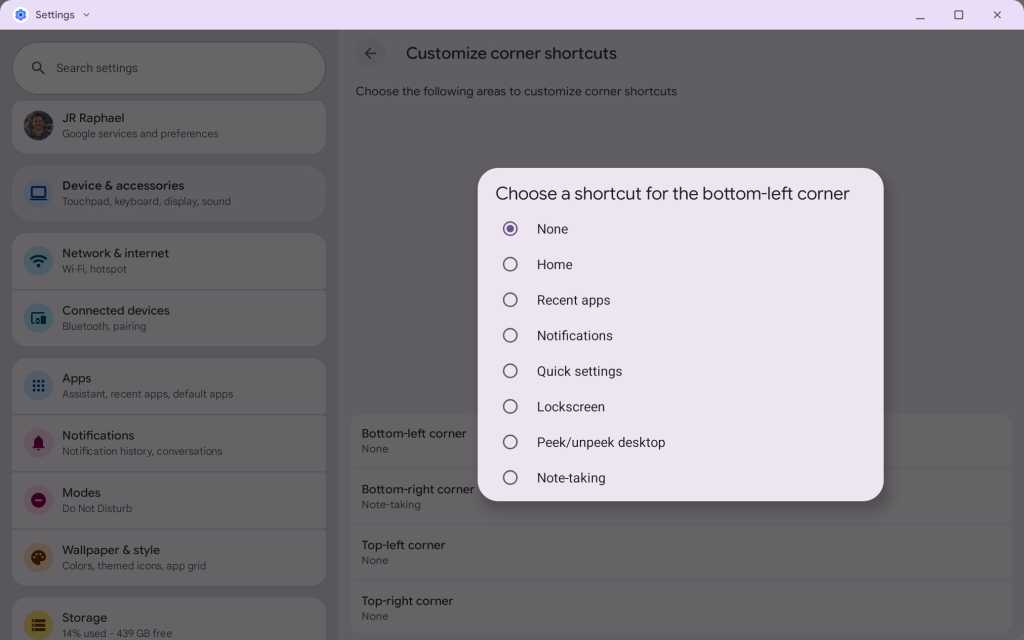
An especially interesting addition for the shortcut-lovers among us is the ability to create your own custom shortcuts for triggering different actions when you move your mouse to the corners of a Googlebook screen.
JR Raphael, Foundry
The list of available options is somewhat limited as of now — with no way to map a corner to opening a specific app or an action within an app (or to take things further yet, with a next-level notion like summoning a widget on demand) — but it’s a welcome addition, even so, and hopefully something that’ll only continue to expand and become more versatile with time.
Googlebook highlight #4: Custom keyboard shortcuts
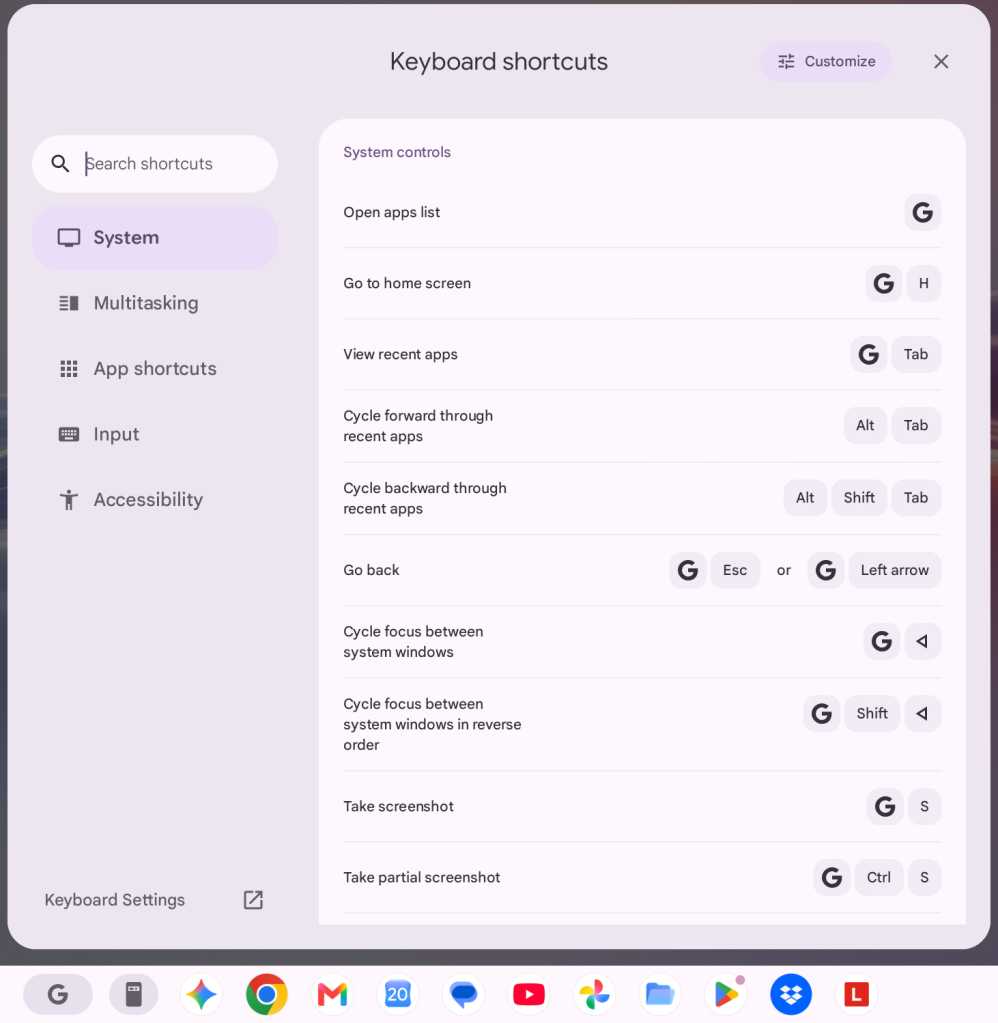
Speaking of shortcuts, while the Googlebook does require a lot of new learning and muscle memory for anyone coming from a Chromebook (or most any other laptop, really), one area where it excels is its ability to let you customize and create your own keyboard shortcuts.
JR Raphael, Foundry
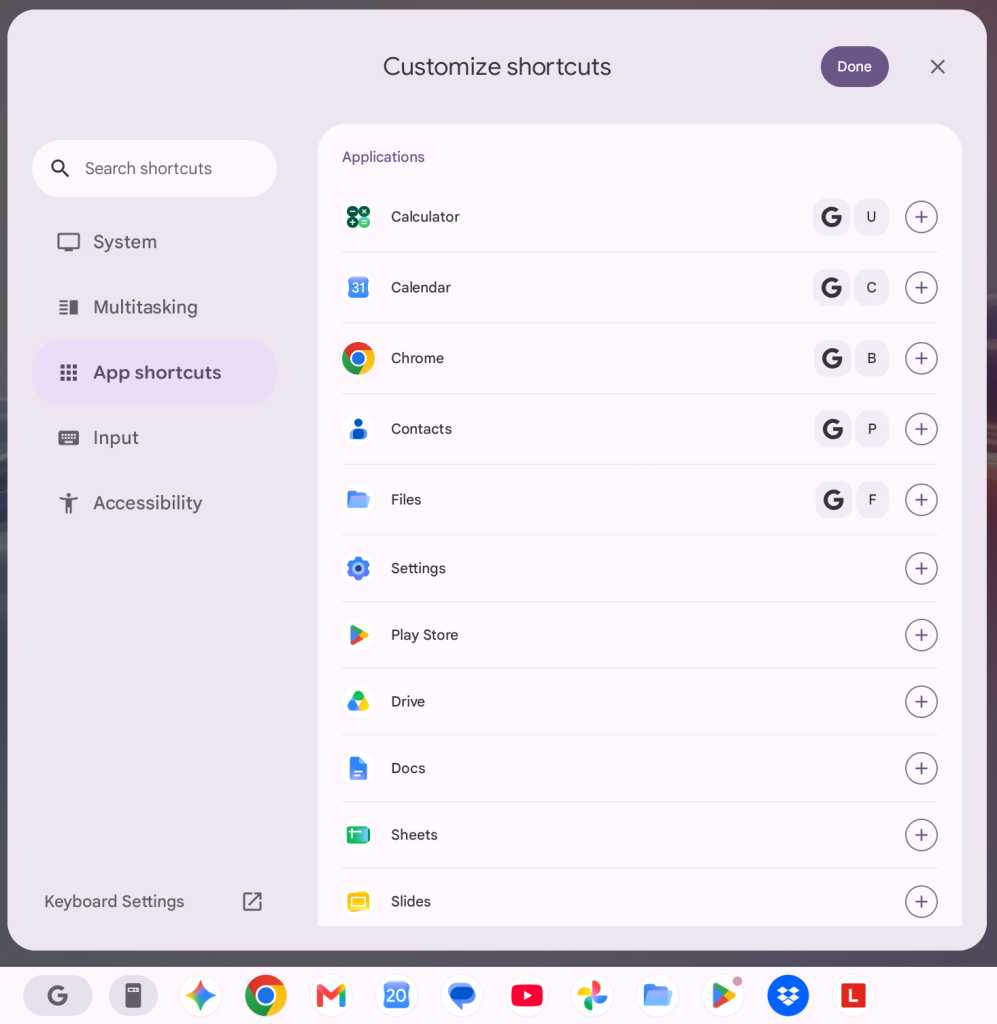
Hitting the Google key and / together opens the list of default keyboard shortcuts, and from there, it’s one more click to customize and change most of the available options to meet your own personal preferences. In an especially cool twist, you can even create new shortcuts for opening any app installed on your device.
JR Raphael, Foundry
Googlebook highlight #5: Automatic file summaries
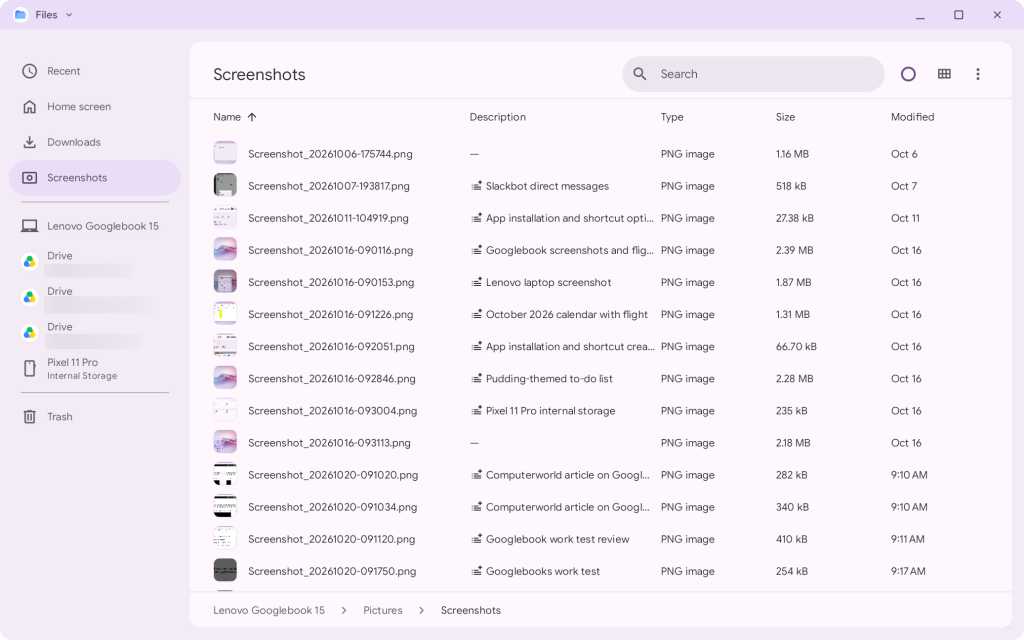
You know how annoying it can be to look through mountains of screenshots — or any other files — to find the one you want, based solely on meaningless file names? The Googlebook has a trick that makes that hassle a thing of the past: For most (but curiously not all) files saved locally on its storage, the system will give you an automatic summary of what’s inside right alongside the filename in the Googlebook OS Files app.
JR Raphael, Foundry
The convenience unfortunately doesn’t carry over to files you’re viewing in your Drive storage or on a connected Android phone. But for anything you’ve downloaded or saved locally, it’s a nice extra bit of intelligence to have.
Googlebook highlight #6: Smart screen savers
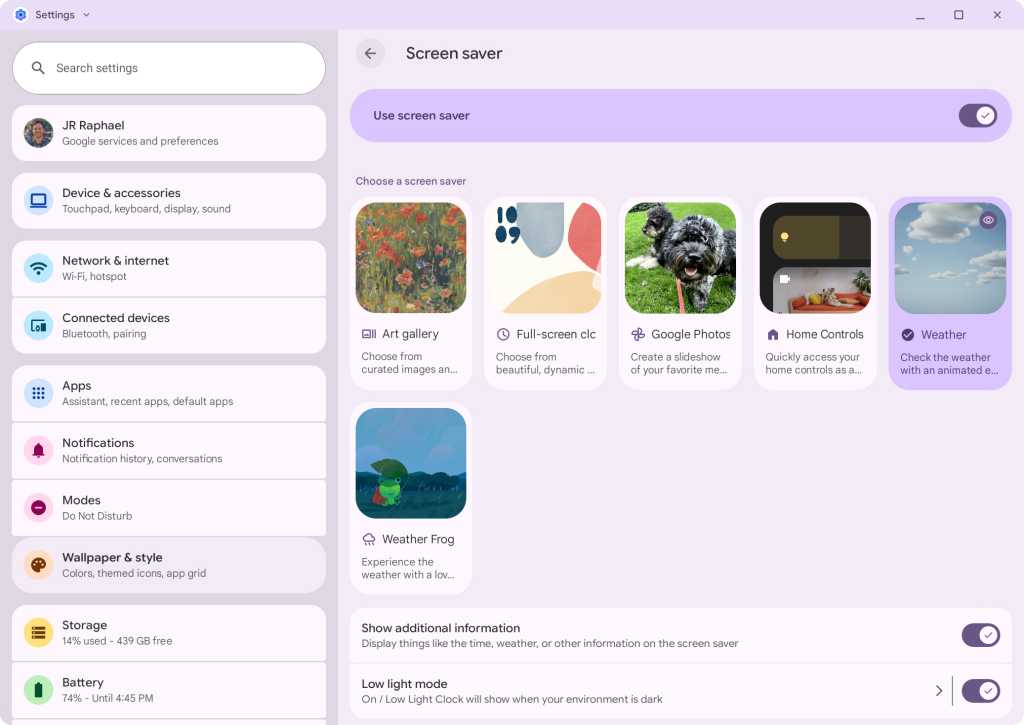
Being based on Android, the Googlebooks sport a selection of built-in screen savers that can make the laptops meaningfully more useful — or maybe just pleasant to look at — when you aren’t actively using ’em.
You’ll have to head into the “Wallpaper & style” section of the system settings to find the feature. But once you do, you’ll be treated to a host of intriguing options just waiting to be activated.
JR Raphael, Foundry
Googlebook highlight #7: Notification history
Last but not least is another Android carryover, and it’s one of my favorite easily overlooked Android options.
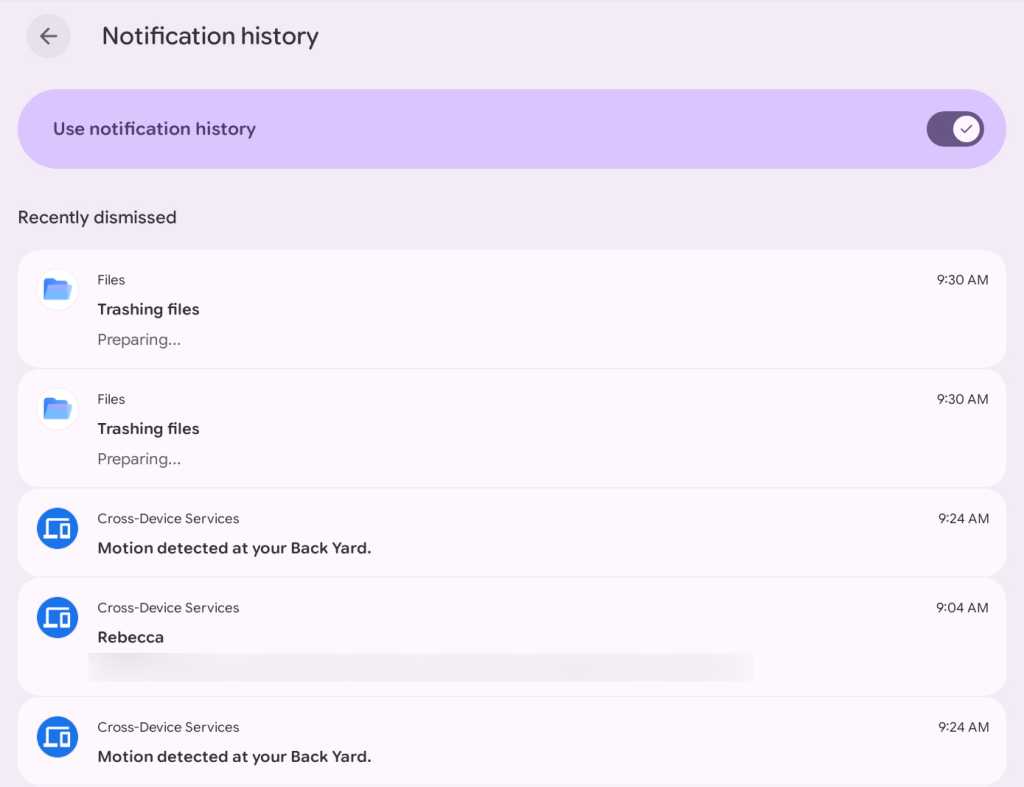
I’m talkin’ about Android’s notification history system — which, yes, is there in all of its glory on the Googlebook. It’s just up to you to find and activate it first, before it’ll start working.
All it takes, though, is a click on the notification bell icon in the upper-right corner of the Googlebook interface, then a click on the clock icon in the lower-left corner of the pop-up that appears. From there, you’ll click “Notification history” and flip the toggle at the top of the next screen into the on and active position.
Give things a moment to start collecting, and you should then be able to click on that same icon to get to a full history of notifications (both from the Googlebook itself and ones synced over from your phone) that you’ve missed or dismissed.
JR Raphael, Foundry
The Googlebook is very much still a work in progress, but features like these make me at least cautiously hopeful for its future and the kind of experience it could one day provide — if, of course, Google manages to actually stick the landing and avoid its all-too-common patterns of pivoting, giving up, and failing to follow through when things don’t take off immediately out of the gate.
Be sure to check out my complete Googlebook overview, if you haven’t already, for a much more detailed picture of what the systems are like to use in their current form, as far as productivity is concerned — and stay tuned to see how things progress from here.
Get even more next-level Google knowledge with my free Android Intelligence newsletter — something new and useful in your inbox every Friday and my Android Notification Power-Pack as an instant welcome bonus.