AI-generated, human-reviewed.
Sign In with Apple offers a streamlined, privacy-focused way to log in to apps and websites without creating new passwords or sharing your real email. On Hands-On Apple, Mikah Sargent highlighted key tips for using this feature, how to manage your accounts, and what to watch out for so you stay in control of your data.
What Is Sign In with Apple and Why Use It?
Sign In with Apple is a federated login system launched with iOS 13 that lets you use your Apple ID to sign into third-party apps and websites, similar to "Sign in with Google" or "Sign in with Facebook." Unlike those options, Apple minimizes data sharing and tracks as little as possible, focusing on your privacy.
When you choose to sign in with Apple, you can:
- Skip creating a separate username and password
- Authenticate with Face ID or Touch ID for added security
- Avoid sharing your real email address by using Hide My Email, which keeps your inbox private
This approach not only makes sign-ins faster and simpler, it also significantly reduces opportunities for your data to be tracked or exposed.
How Does Sign In with Apple Work?
When you use Sign In with Apple:
- The third-party app requests authentication from Apple, not your direct password.
- You choose whether to share your real email or use Hide My Email, which creates a private relay email unique to that app.
- You authenticate using Face ID, Touch ID, or your Apple ID credentials.
- Whenever you log in again, you simply tap the "Sign in with Apple" button and authenticate; there's no need to remember new passwords.
If you pick Hide My Email, any email from the app forwards to your real inbox, but the app never sees your main address. This helps prevent spam and quickly reveals if any app misuses your info.
Managing Your Sign In with Apple and Hide My Email Connections
Mikah Sargent demonstrated that you can manage all your connected accounts right from iOS or macOS settings:
- Open the Settings app
- Tap your name at the top, then go to iCloud > Hide My Email
- View all the random email addresses (private relays) apps use to reach you
- Adjust forwarding, or delete relays for apps you no longer use
To manage which apps have access:
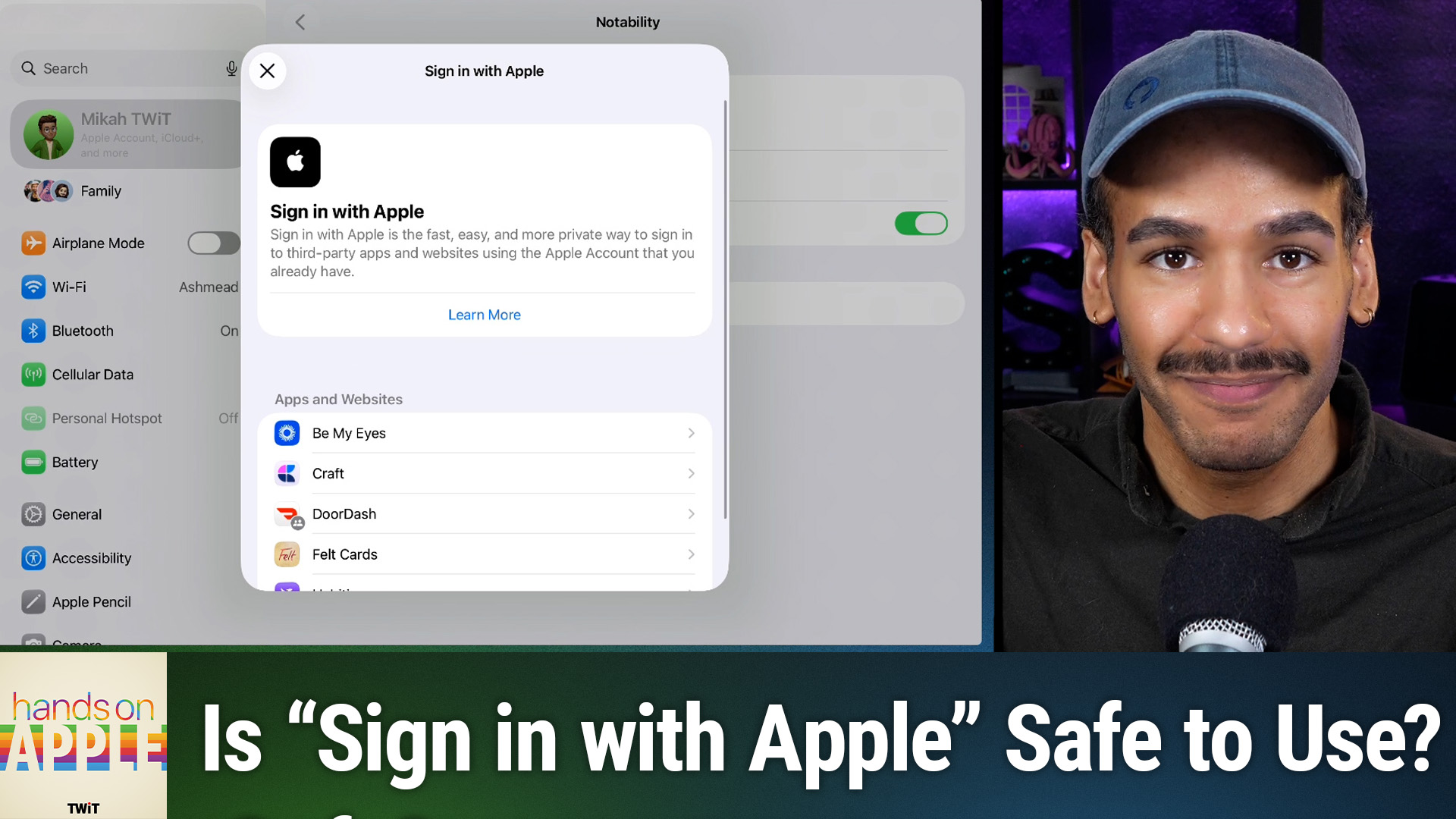
- In Settings, scroll to Sign In with Apple
- Review each app linked to your Apple ID sign-in
- From here, stop using Sign In with Apple for any app you don't want connected (note: this doesn't delete your account in the app, so do that in the original app itself first)
Regularly reviewing your Sign In with Apple list is smart housekeeping. Remove access from apps you haven't used in a while to limit unnecessary data exposure.
Be Aware: Trade-Offs and Risks
The biggest consideration with Sign In with Apple is dependency. If your Apple ID is inaccessible—due to account lockout, two-factor issues, or regional restrictions—you may lose access to all connected apps at once.
For most, this is temporary (Apple's account recovery can take days or weeks), but if you use Sign In with Apple for critical accounts, a locked Apple ID could mean losing important access until the issue is resolved.
Recovery options:
- Set up recovery contacts and legacy contacts in your iCloud/Apple ID settings for future access to your account.
- Use traditional logins (with a strong password and password manager) for services you can't afford to be locked out of.
Sign of the Times
- Sign In with Apple is more private than Google or Facebook logins.
- Hide My Email shields your real address, reducing spam and tracking.
- Managing your Sign In with Apple logins is easy but should be done periodically.
- Deleting access from Apple doesn't delete accounts; always delete within the app first.
- Be cautious with critical or financial services; have backup login options.
Sign In with Apple brings real convenience and better privacy to managing app logins, especially when paired with Hide My Email. For everyday services, it's a smart default. For high-stakes accounts, balance convenience with the need for backup access. Routine management of your linked apps keeps your data exposure low and your Apple ID under control.
Subscribe for more Hands-on Apple privacy tips:
https://twit.tv/shows/hands-on-apple/episodes/229