AI-generated, human-reviewed.
Customizing your iPhone's Control Center can transform how quickly and efficiently you access essential features, from toggling connectivity to launching favorite apps and shortcuts. On iOS Today, Mikah Sargent and Rosemary Orchard revealed how the latest Control Center updates unlock advanced personalization options and security tweaks—empowering every user to optimize their device for daily use.
Why Customizing Control Center Matters
Control Center is your iPhone's shortcut hub, giving instant access to everyday controls, quick device toggles, and even third-party app actions. Whether you're toggling Wi-Fi, setting up screen recording, controlling smart home devices, or launching accessibility shortcuts, customizing Control Center can save you time and streamline your digital routine. Recent iOS updates make it even more flexible, so taking a few minutes to set it up pays real dividends.
What Can You Do with the New Control Center?
- Rearrange, add, or remove controls to match your needs.
- Resize controls for easier tapping or better emphasis.
- Integrate third-party app shortcuts—not just Apple features.
- Adjust access permissions directly for security and convenience.
- Personalize lock screen quick actions (like replacing the flashlight or camera shortcut).
- Easily reset to defaults if you want to start over.
How to Personalize Your iPhone Control Center
Editing and Arranging Controls
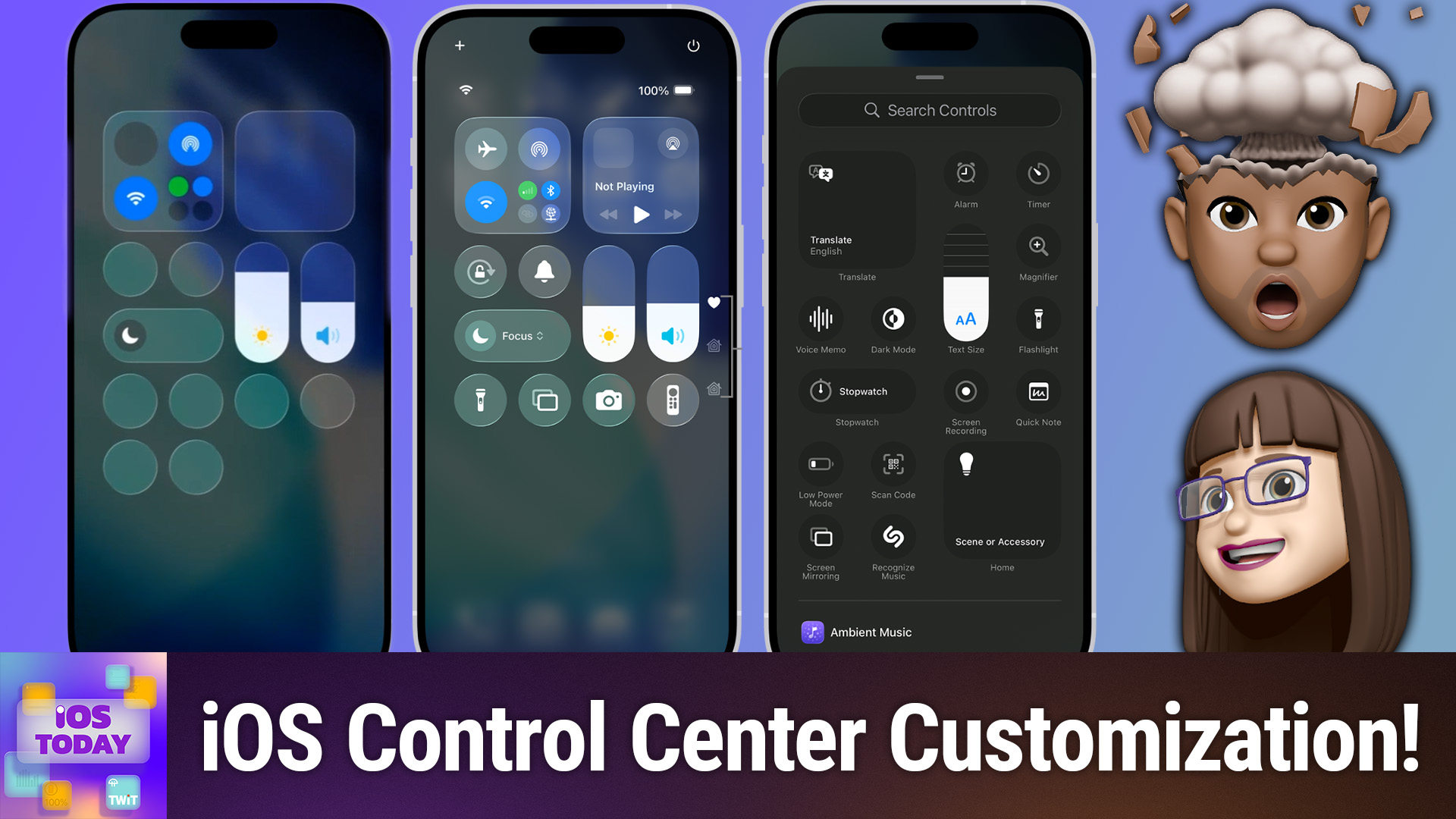
To start editing, swipe into Control Center (down from top right on newer iPhones, up from the bottom on older models). Tap the plus icon in the top left of Control Center to enter "edit" mode. You'll see minus "–" icons for removing controls, and a "macaroni noodle" handle for resizing or moving controls. Drag to reorder or resize—note that only certain controls support size changes or specific locations.
Pro Tip: If the "jiggle mode" for editing feels finicky, always use the plus icon for more reliable access.
Adding Controls and Integrating Apps
When adding new controls, check out both the basic features and third-party app integrations listed below the initial options. For example, you can add:
- Timer, Alarm, Apple TV Remote, Low Power Mode
- Text recognition and Live Listen for accessibility
- Dice by PCalc—roll dice instantly for games
- Capture shortcuts for Halide, Instagram, or other camera apps
- Citymapper's Get Me Home, QR code scanners, ambient music controls, and more
Toggle, resize, and rearrange until Control Center matches how you actually use your device.
Lock Screen, Security, and Access Permissions
Go to Settings > Control Center to enable or disable Control Center access within apps. If you find Control Center unavailable when using certain apps, you may have this toggled off by accident.
For lock screen access, open Settings > Face ID & Passcode (or Touch ID & Passcode) and check the "Allow Access When Locked" section. Here, you can toggle whether Control Center (or Wallet, Home Controls, etc.) appears when your iPhone is locked. Customizing these can prevent accidental toggles or protect personal information.
You can also edit the two bottom lock screen shortcuts (usually flashlight and camera) from Control Center customization, setting them to any available control instead.
Organizing for Your Workflow
Mikah Sargent and Rosemary Orchard demonstrated real-world setups:
- Mikah Sargent uses controls like text recognition, timers, the Apple TV remote, audio options (Live Listen, system capture), screen recording, and custom accessibility shortcuts.
- Rosemary Orchard adds Print Center (for stuck print jobs), shortcut buttons for finding a lost watch, magnification, smart home controls, and more.
Tip: Don't forget about secondary pages. Swipe down further in Control Center for extra controls and widget-like toggles—great for things you use less often but still want at the ready.
Main Takeaways
- Modern iOS lets you deeply customize Control Center for faster access to the features you actually need.
- Controls can be resized, rearranged, or removed as your needs change.
- Third-party app actions and automations are now easy to add, making Control Center a powerful central command.
- Security options let you restrict or enable access from the lock screen and within apps.
If you haven't updated your iPhone Control Center lately, taking a few minutes to personalize your controls can greatly improve your productivity and security. Whether you need instant access to home controls, accessibility features, or your most-used apps, the modern Control Center gives you the flexibility and power to tailor your device exactly how you want it.
Subscribe for more iOS tips and deep dives at https://twit.tv/shows/ios-today/episodes/799