AI-generated, human-reviewed.
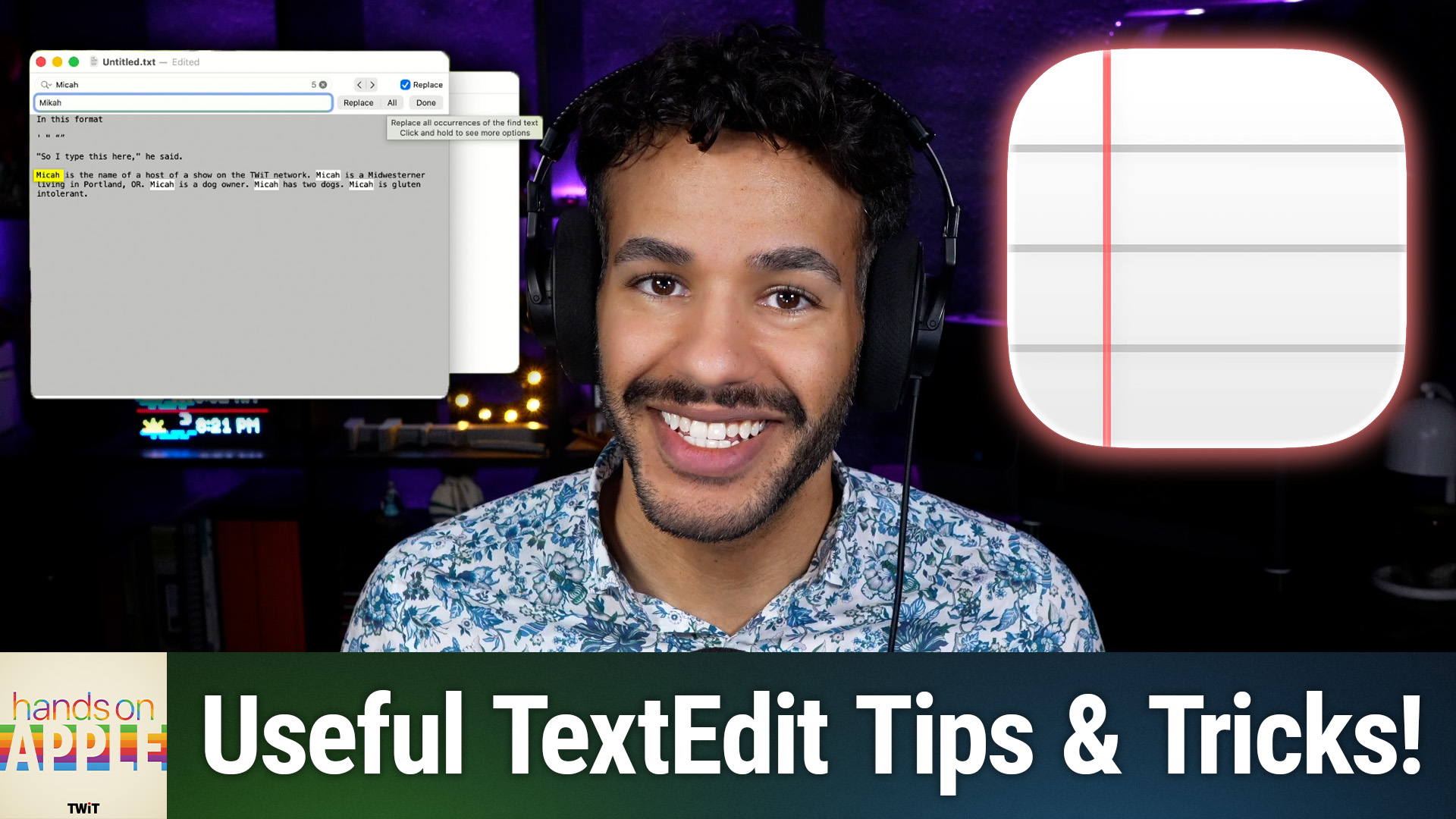
The simplest app in your Applications folder, TextEdit, is a powerful, overlooked tool for anyone working with text on a Mac. Setting TextEdit to default to plain text transforms it into a quick, reliable scratchpad, clipboard cleaner, and daily log helper.
On Hands-On Apple, Mikah Sargent highlighted why TextEdit remains a favorite for daily notes, code snippets, and stripping pesky formatting from copied text—especially if you configure a few key settings.
What Makes TextEdit Special?
TextEdit is Apple's built-in text editor for macOS, included since 2001. Unlike heavier apps like Microsoft Word or Pages, TextEdit launches instantly and focuses on the essentials: writing, pasting, and editing text.
It supports two document types:
- Rich Text (RTF): Allows basic formatting (bold, italics, colors, font choice), images, and alignment
- Plain Text (TXT): Strips all formatting, making files universally compatible and perfect for code, raw notes, or cleaning up copied content
Many users overlook TextEdit, either because it defaults to rich text (which feels redundant next to Pages) or because they don't realize how easy it is to switch to plain text mode.
Quick Setup: How to Make TextEdit Your Daily Tool
1. Change the Default to Plain Text:
Go to TextEdit > Settings > "New Document" tab, set Format to Plain Text. This ensures all new documents start clean and unformatted.
2. Optional: Adjust Wrapping & Window Size:
Enable or disable "Wrap to Page" depending on whether you want visible margins or a freely resizable window.
3. Learn the Important Keyboard Shortcut:
Use Shift-Command-T to toggle between plain and rich text quickly.
4. Set Up for Daily Notes:
Open a daily document named by date (e.g., "20240605.txt") and keep your window handy for jotting down notes, drafting messages, or holding code and commands.
Why Use Plain Text?
On Hands-On Apple, Mikah Sargent explained that plain text documents:
- Open instantly in any app or device
- Are ideal for code snippets, terminal commands, and links
- Strip unwanted formatting from web copy (just paste into TextEdit, copy again, and paste wherever needed)
- Make searching, organizing, and archiving easy
- Sync and version cleanly—perfect for daily logs
Choosing plain text as default means faster workflows and less risk of copy-paste headaches down the line.
Key Power-User Features
Find & Replace: Quickly search and make batch corrections—including case sensitivity, full word searches, and even regular expressions (for advanced users).
View Old Versions: Like other macOS apps, TextEdit can revert to earlier saved versions—saving you from lost changes.
Speech on Selection: Use Edit > Speech > Start Speaking for proofreading. Hearing your text read aloud catches errors your eyes might miss.
Settings for Advanced Use:
- File Encoding: Defaults are usually fine (automatic/Unicode), but you can tweak for web or programming needs.
- Metadata & Options: Add copyright/author info for RTF files, toggle smart features (e.g., spellcheck, smart quotes), tailor TextEdit to your workflow.
What This Means for You
If you're stuck waiting for Slow Word or cluttering your Notes app with throwaway drafts, TextEdit is the perfect in-between. It won't replace full-featured word processors, but handles everyday writing, quick notes, and cleaning up copy with ease.
For coders, it lacks syntax highlighting and advanced features—VS Code, BBEdit, or Xcode are better for heavy development. For formatted documents like resumes or print layouts, stick with Pages or Word.
But for:
- Daily logs
- Quick drafts
- Stripping formatting
- Code snippets and terminal tweaks
- Universal access to notes (across any platform)
TextEdit excels.
The Bottom Line
Give TextEdit a spot on your dock, set it to plain text, and use it as your digital notepad and clipboard fixer. It's fast, free, and built right into your Mac—no extra downloads, no bloat.
Try using TextEdit for a week as your default scratchpad and see how much smoother your Mac workflow feels.
Want more practical Mac & iOS tips? Subscribe to Hands-On Apple for weekly tutorials:
https://twit.tv/shows/hands-on-apple/episodes/230